How do I sign off a photo before it’s used?
Adding a photo to a page and putting it in front of your customers are two different decisions, and your library keeps them separate. Your assistant can do the first on its own; only you can do the second.
The prompt
“Show me any photos in my library waiting for my approval, and tell me why each one needs it.”
Signed in, Get my prompt fills in your site for you. Otherwise press Copy and fill in the [bracketed] parts. First time? Connect your AI to bernard once: Use your own AI (opens in a new tab).
Every photo has a sign-off state
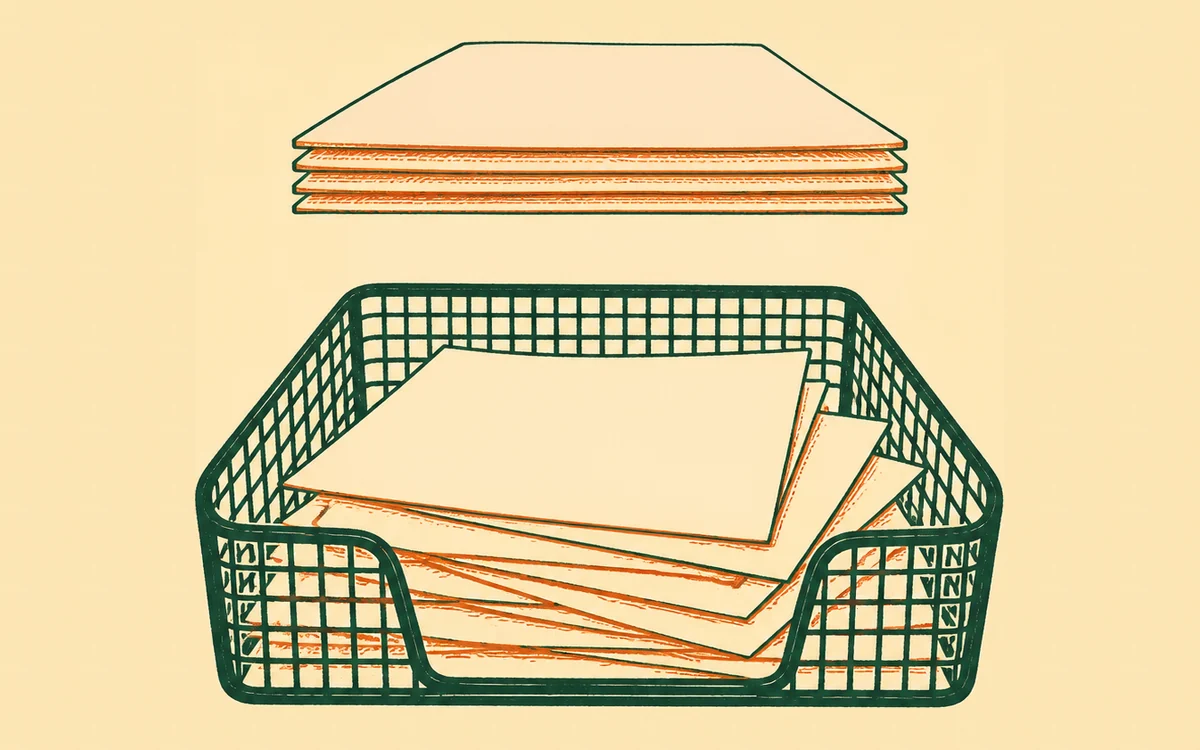
A photo in your library is either approved, rejected, or waiting. Waiting is the normal starting point - it isn’t a problem, it’s just not yet your call made. Open your library and anything waiting shows up in a queue at the top, with a plain Approve or Reject button.
Approving is a click, not a search
You don’t have to hunt for what needs a decision - the library groups it for you. Approve clears a photo for use; Reject asks for a short note so whoever added it (you, in the past, or your assistant on your behalf) knows what to change. Neither touches the photo itself or any page - it’s a sign-off, not an edit.
The everyday shortcut
Most of the time you won’t visit the queue at all: when you approve your site’s ordinary changes - the same Approve button covered in How do I approve or undo changes? - any new, not-yet-approved photos in that batch get waved through with it. The dedicated queue in your library is for the times you’d rather review photos on their own, ahead of placing them, or reject one before it goes any further.
Your assistant can never approve on your behalf
However much you trust it, sign-off stays a human act - your assistant has no button for it, by design. If it’s added or found a photo that still needs your say-so, it will tell you and ask, never approve quietly and move on. See Is it safe to let an AI edit my site? for the wider picture of what it can and can’t do without you.
Questions people ask
- Who has to approve a photo before it can be used?
- You do - or whoever else on your team you’ve made an approver. Your assistant can add photos, tag them, fill in their rights details, and even place them on a draft page, but it cannot approve one itself. That click is always a person’s.
- Do I have to approve every single photo before I use it?
- No. Approving your site’s changes - the ordinary Approve button when you publish - waves through any not-yet-approved photos in that change in one click. The library’s own Approve/Reject queue is there for when you’d rather clear photos ahead of time, or reject one with a note before it’s ever placed.
- What happens if I reject a photo?
- It’s marked rejected with your note attached, and stays off any live page. Whoever added it - you or your assistant - can see why and try again with a different shot or a fix.