Where do the files I send Bernard go - and how do I clear them out?
Files reach your site two very different ways, and knowing which is which saves a lot of worry. Your files, on your Library page, shows both, site by site.
The prompt
“Show me the files staged on [site name] and delete the ones you’ve already used.”
Signed in, Get my prompt fills in your site for you. Otherwise press Copy and fill in the [bracketed] parts. First time? Connect your AI to bernard once: Use your own AI (opens in a new tab).
Files you sent in chat
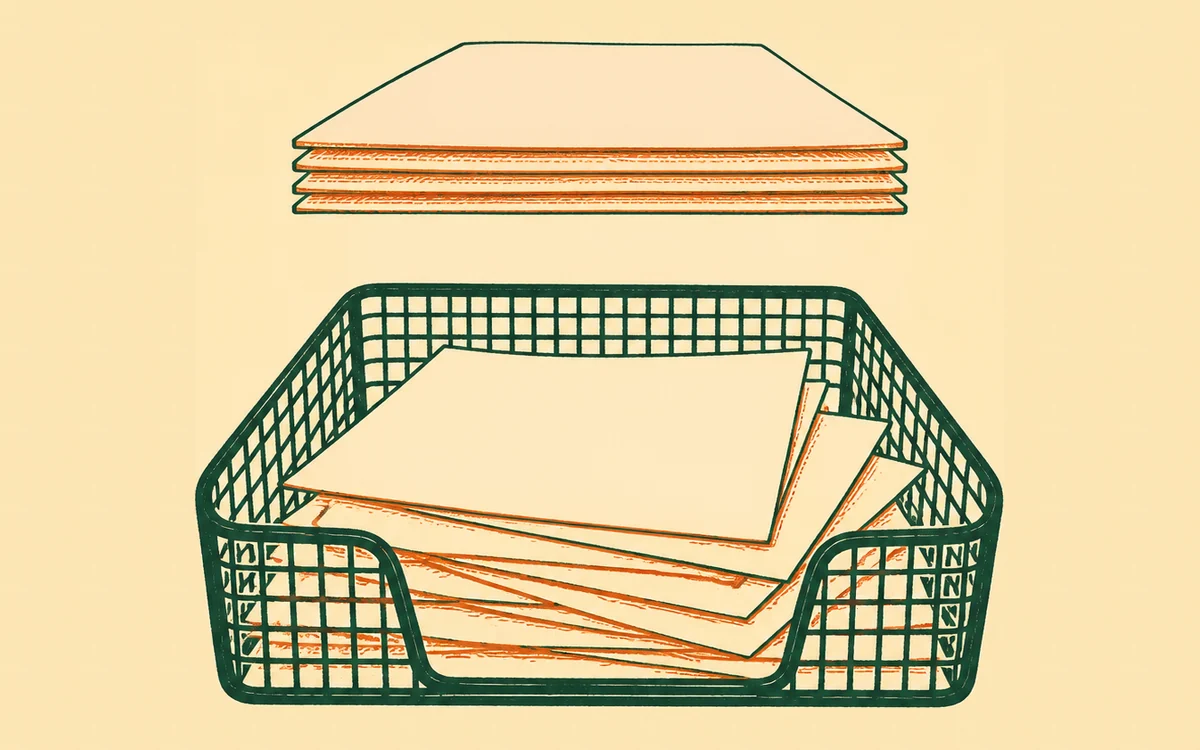
Attach a photo to a message and it goes to a waiting room: Bernard can see it, crop it, and put it on a page, but it isn’t part of your website yet. Those files sit there for 7 days and are then cleared out automatically, and each site holds 50 of them at a time.
That cap is the reason this list exists. Send a run of photos while you’re deciding between them and the waiting room fills up, and Bernard has to tell you he can’t take another until some go. The count at the top of each site section tells you where you stand, and you can tick as many as you like and clear them in one press.
Deleting one of these never touches your website. When Bernard puts a picture on a page he saves his own copy alongside the site, sized and compressed for the web (Keep images small and fast). The file you sent him has done its job by then. That’s also why there’s no undo here, and why it doesn’t need one.
Files that live with your site
Documents, video and audio you uploaded on the Library page, or on a page itself, are the other kind: they stay put, and a page may well be linking to one right now (Upload files and video to my site). They’re listed here so you can see what a site is carrying, with a link through to each one’s record card where it has one (What is the media library - and what can I do with it?).
You can’t delete these from this list yet. Removing a file a page depends on is how a download link quietly turns into a dead end, so it waits for Bernard to be able to tell you what’s using it first (Where’s that photo of ours - the one from the summer market?). In the meantime, ask him to take a file off a page and the change arrives as a draft for you to look at.
What isn’t shown
Bernard takes his own screenshots while he works, to check what a page actually looks like. Those are his working notes rather than your files - they don’t count towards your space, they clear themselves out, and they stay out of this list.
Questions people ask
- If I delete a file here, does it disappear from my website?
- No. When Bernard puts a picture on a page he saves his own copy with the site, so the one you sent him in chat is only ever the staging copy. Deleting it takes nothing off any page, live or waiting for your approval.
- Why do my chat files vanish after a week?
- They’re a waiting room, not storage. Anything you send Bernard in chat is kept for 7 days so he can work with it, then cleared automatically. Once he’s used a file it’s saved with your site properly, so nothing you approved is ever at risk.
- Bernard says the space is full. What now?
- Each site holds 50 chat files at once. Open Your files, tick the ones you don’t need and delete them in one go - the count at the top of each site tells you how close you are.
- Can I delete a document or video from this list?
- Not yet. Those live with your site and a page may be linking to one, so removing them safely means checking where they’re used first. Ask Bernard to take a file off a page and he’ll show you the change before you approve it.
- Can Bernard clear the list for me?
- Yes - ask him to delete the staged files you’re finished with and he does the lot in one go. He’ll tell you what he removed; nothing on your pages changes, so there’s nothing to approve.